Article in Press
Article in Press allows a journal to publish accepted, publication-ready articles online before assigning them to a regular volume and issue. It is also commonly described as Online First, Early View, or Publish Ahead of Print.
Academic Stack supports this workflow by using a reserved volume and issue. Articles remain discoverable on the journal website and can later be moved into their final issue without creating a second article record.
Use this workflow only after the manuscript has completed peer review, been accepted, and passed the journal's production checks. This manual volume-and-issue workflow does not apply to conference-driven journals, which must use Conference Management.
Assign the article's DOI before publication. You may deposit it with Crossref at the Article in Press stage or wait until final issue assignment, but apply the chosen policy consistently.
Workflow Overview
Accepted manuscript
  → Production-ready article
  → Article in Press volume and issue
  → Marked as Public in Article Management
  → Published online
  → Assigned to a regular volume and issue
  → DOI metadata updated
1. Create a Reserved Volume
In volume management, add a volume with Number 0. This distinguishes Article in Press content from the journal's regular numbered volumes.
- The year can follow your journal's internal convention.
- Add a clear alias, such as Article in Press, Online First, or Early View.
- Use this volume only for articles awaiting final issue assignment.
2. Create the Article in Press Issue
Under Volume 0, create a dedicated issue:
- Month: Select a month according to your journal's convention.
- Number: Enter an issue number that is unique within Volume
0. - Alias: Use the public label readers should see, such as Article in Press or Publish Online First.
- Description: Explain that these articles have been accepted and published online but have not yet been assigned to a regular issue.
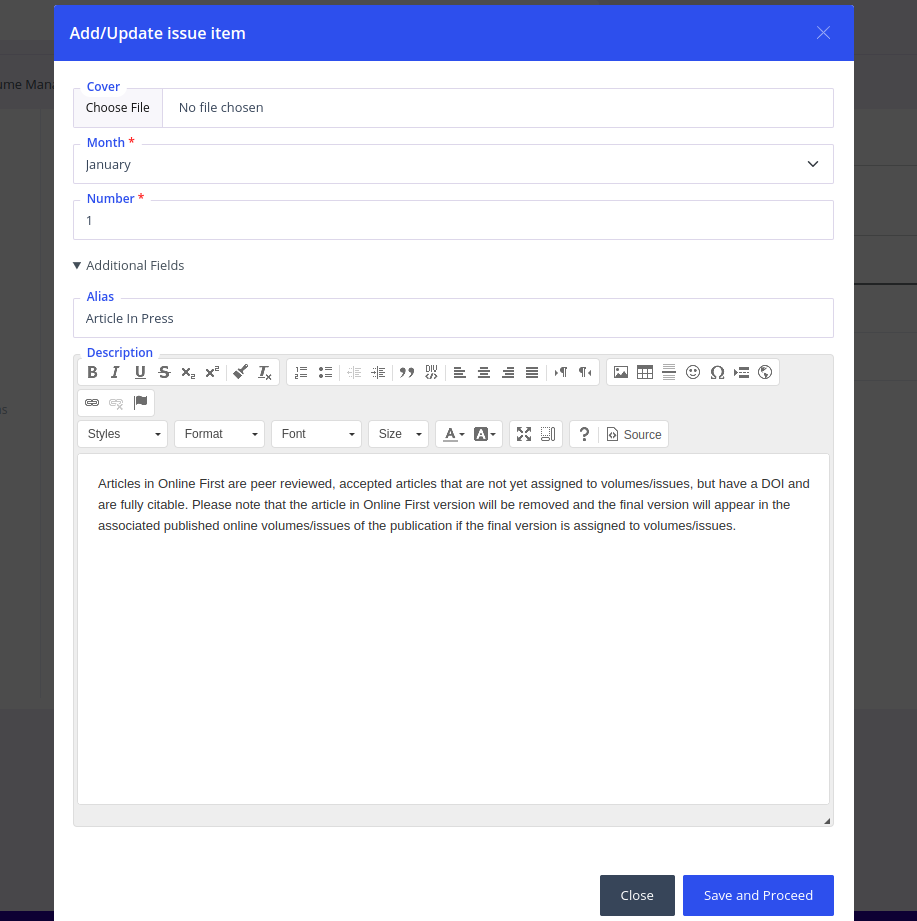
Example configuration for an Article in Press issue.
3. Publish the Article into the Reserved Issue
When the article is ready for online publication, select Volume 0 and the Article in Press issue in Prepare Publication, then save the article. This creates or updates a pending article; it does not publish it immediately.
Open the article in Article Management, verify the title, authors, affiliations, abstract, online and publication dates, PDF, and DOI information, then enable Public and save.
The article will then appear as a normal published article on the journal website, under the Article in Press issue, until it receives its final issue assignment.
4. Add Article in Press to the Journal Menu
For easier discovery, copy the issue's Live Link from Issue Management and add it to the journal's main navigation as a Link menu item. Use the same label configured as the issue alias so readers encounter consistent terminology.
Volume 0 is not included in the regular archive, so this step is strongly recommended when the journal publishes Article in Press content regularly.
5. Move the Article to Its Final Issue
Once the regular volume and issue are ready:
- Open the published article in article management.
- Replace Volume
0and the Article in Press issue with the final volume and issue. - Enter the final First Page and Last Page, which are required for a regular volume, and update the article's publication date if necessary.
- Keep the existing Article Number and DOI unless a correction is genuinely required.
- Confirm that the article appears in the correct issue and is no longer listed under Article in Press.
- If the DOI has already been registered, update its metadata with the final volume, issue, pages, publication date, and current article URL.
Do not create a new DOI merely because the article moves from Article in Press to a regular issue. Keep the existing DOI and re-deposit the corrected metadata with Crossref. In Academic Stack, use Re-Upload DOI to Crossref or download and submit the updated Crossref XML. See Crossref DOI Registration for the complete workflow.
Recommended Checks
Before and after final issue assignment, confirm that:
- The article is listed in only one active issue.
- The PDF and public article page show consistent citation information.
- The DOI resolves to the current article page.
- Crossref displays the final volume, issue, date, and pagination or article number.
- The Article in Press listing no longer includes the reassigned article.