Billing & Invoices
Academic Stack embeds manuscript billing directly into the peer review and publication lifecycle. Instead of using separate spreadsheets, editors can create, review, and complete invoices directly from the manuscript context.
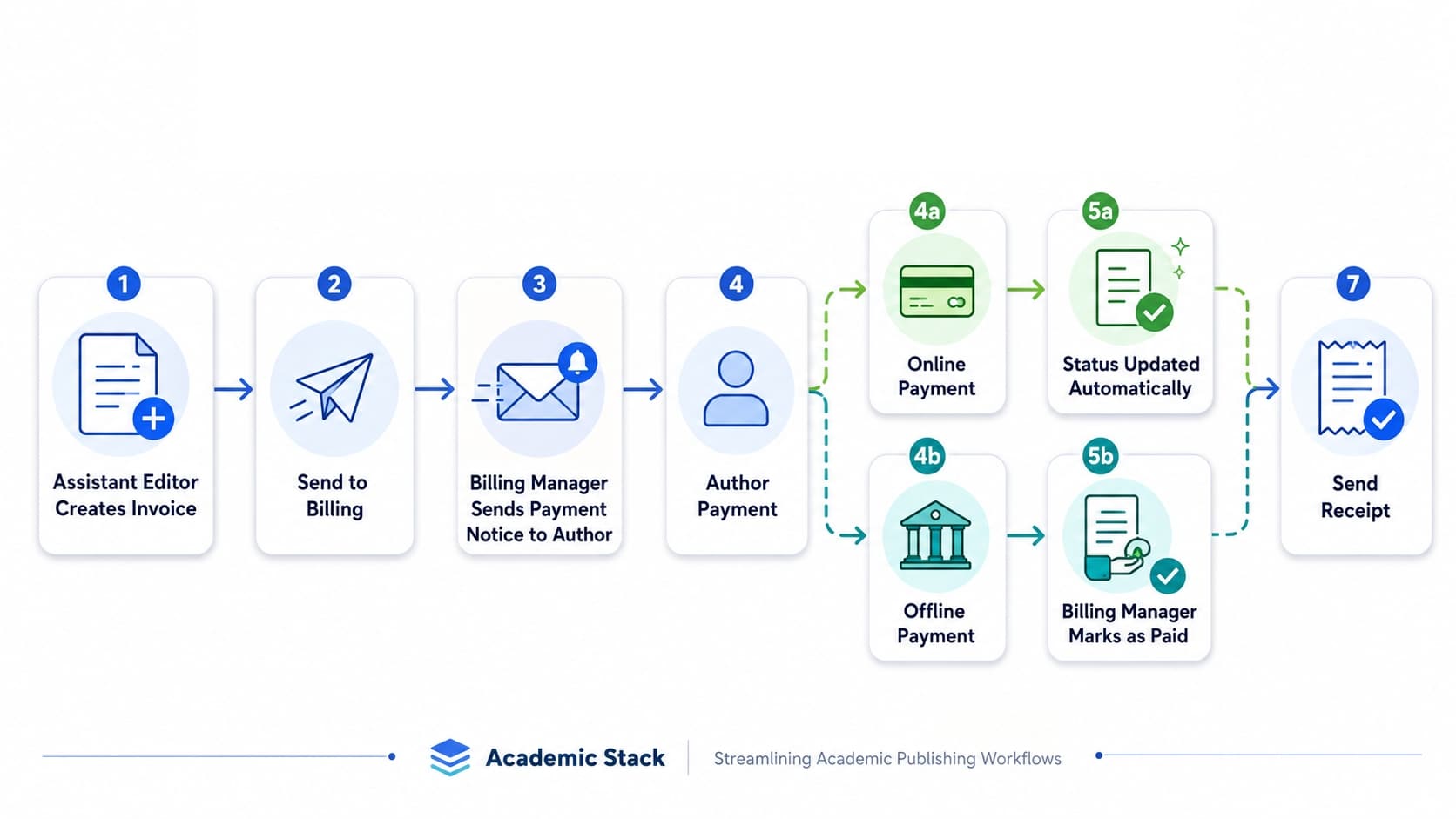
End-to-end workflow from invoice creation and Billing handoff through payment confirmation and receipt delivery.
The sections below explain each stage of this workflow, from creating an invoice and sending it to Billing through confirming payment and issuing a receipt.
A manuscript can have a one-to-many relationship with invoices. This allows splitting charges between different co-authors or funding institutions:
Manuscript (Accepted / In Production)
  ├── Invoice 001 (Article Processing Charge to Institution)
  └── Invoice 002 (Color Page / Extra Surcharge to Corresponding Author)
Managing Invoices at the Manuscript Level
Editors can manage all invoices connected to a single manuscript from the Invoice List dashboard, accessible via the action menu in the top-right corner of the manuscript details page.
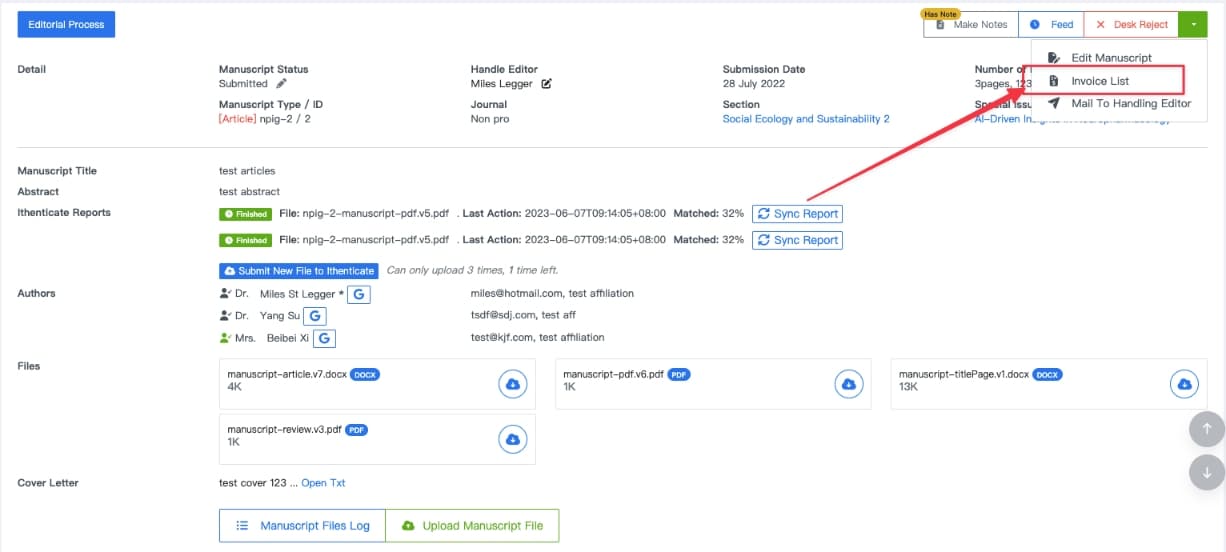
Accessing the invoicing dashboard from the manuscript action menu.
- Timing: Invoices are typically created immediately after formal acceptance (
Accept Decision). - Draft Adjustments: Before sending the invoice to Billing, editors can update the billing details, fee items, and payer information, or delete the draft.
- Quick Actions: From the list, editors can view, download, and update invoices. Draft invoices also display the Send to Billing action.
Send an Invoice to Billing
After checking the draft, select Send to Billing beside the invoice. This hands the invoice over to the Billing Manager for final review; it does not send the invoice to the author.
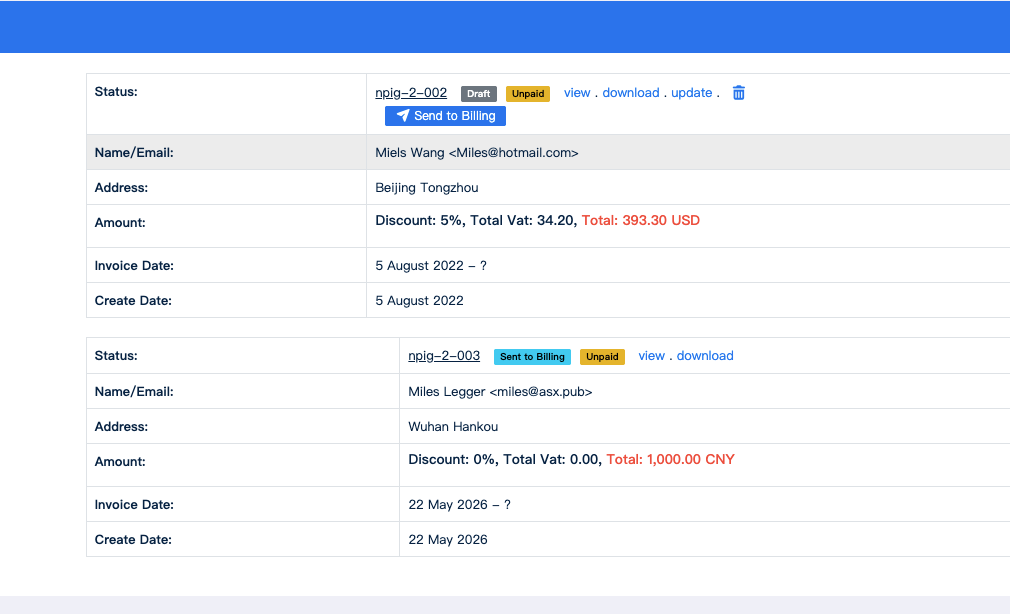
A draft invoice with the Send to Billing action, followed by an invoice already handed over to Billing.
Once submitted, the invoice displays the Sent to Billing status and becomes available in the Billing Office. The Billing Manager can then review or update it before sending the invoice and payment notice to the author.
Invoice Fields and Structure
The invoice creation form captures standard billing details required for institutional payments:
- Header & Metadata: Invoice number (auto-generated or manual), issue date, and payment due date.
- Payer Information: Name, institution, billing address, email, and optional VAT/Tax ID.
- Line Items: Custom fee types (e.g., APC, page charges), unit price, quantity, tax/VAT rates, and discounts.
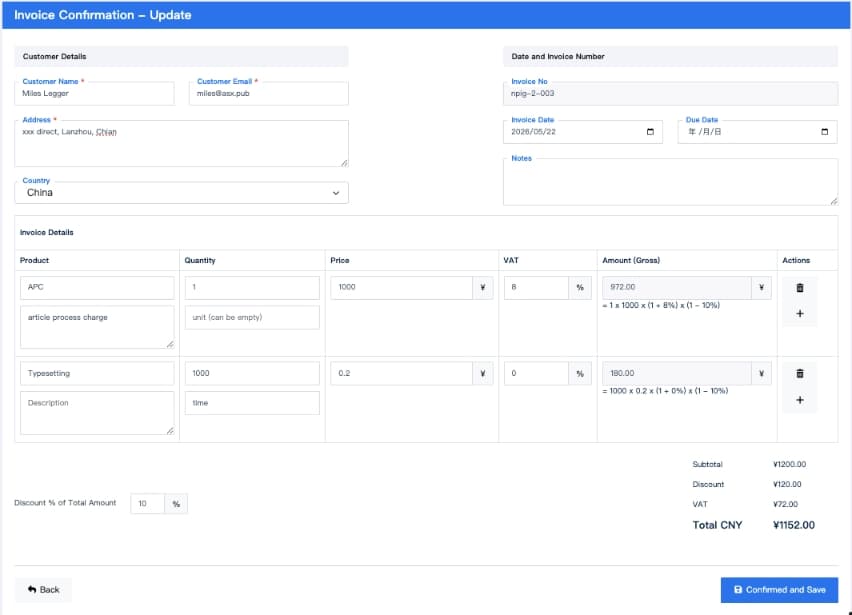
Creating a new invoice with customized line items.
The generated invoice combines the payer and manuscript information with an itemized fee summary, tax and discount calculations, currency, payment status, and publisher payment details. Billing staff review this same invoice page before sending it to the author.
Billing Workflow and Life Cycle
The invoice workflow separates editorial preparation, billing review, and payment processing. Creating an invoice does not immediately expose it to the Billing Office or the author:
- Create Draft: The Assistant Editor creates the invoice from the manuscript. The draft remains in the manuscript-level Invoice List and can still be updated or deleted.
- Send to Billing: The Assistant Editor uses Send to Billing to hand the checked draft to the Billing Manager. Only then does the invoice appear in the Billing Office.
- Billing Review: The Billing Manager verifies the payer, invoice number, dates, line items, taxes, discounts, and total amount, and may update the invoice before sending it to the author.
- Send to Author: The Billing Manager sends the invoice and payment notification. The invoice becomes visible to the author and its payment status is Unpaid.
- Record Payment:
- Online payment: A successful payment gateway callback automatically changes the invoice status to Paid.
- Offline payment: The author uploads payment proof, and the Billing Manager verifies it and manually selects Mark as Paid.
- Send Receipt: After either payment path reaches Paid, the Billing Manager sends the payment receipt. The invoice then moves to Receipt Sent / Completed.
Role & Permission Matrix
| Action | Assistant Editor / Editor | Billing Manager (Enterprise) | Publisher (Cloud) | Author |
|---|---|---|---|---|
| Create Draft | Yes | Yes | Yes | No |
| Edit Draft | Yes | Yes | Yes | No |
| Send to Billing | Yes | Yes | Yes | No |
| Send to Author | No | Yes | Yes | No |
| Upload Proof | No | No | No | Yes |
| Mark Paid | No | Yes | Yes | No |
| Delete Draft | Yes | Yes | Yes | No |
| Void Submitted Invoice | No | Yes | Yes | No |
| Download PDF | Yes | Yes | Yes | Yes |
Global Invoicing Dashboard
The global invoicing dashboard provides a centralized interface to monitor, filter, and manage billing across the entire journal or publisher group.
- Academic Stack Enterprise: Accessed via the Billing Office menu (managed by the Billing Manager role).
- Academic Stack Cloud: Located under the Editorial Office menu (accessible to the Publisher and authorized editors).
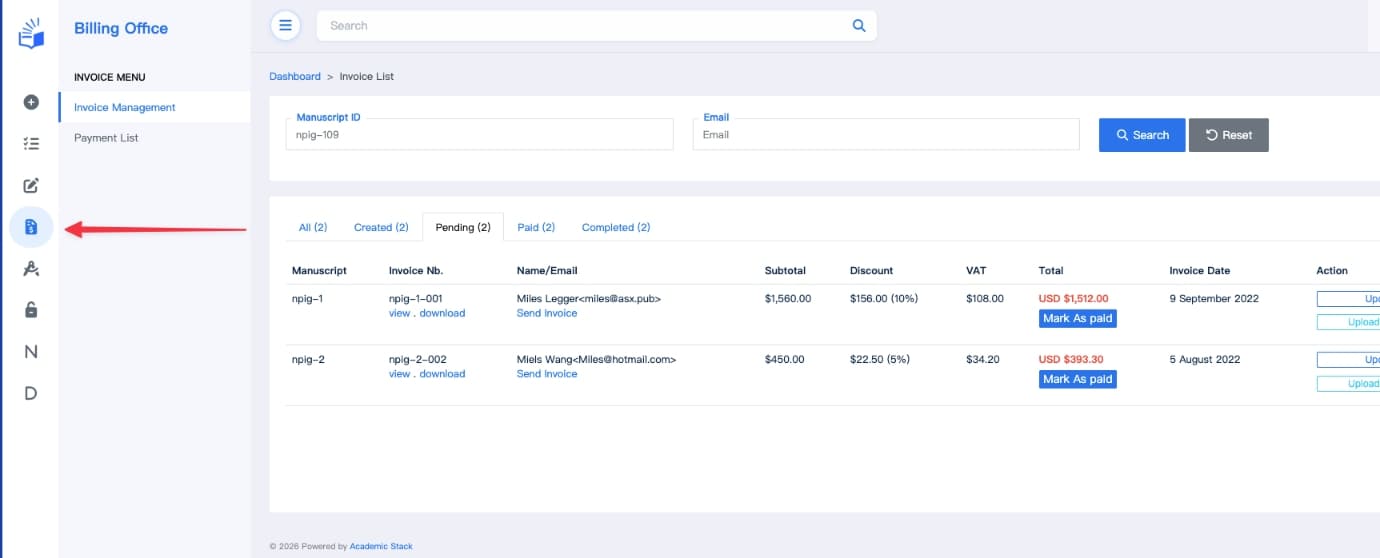
Centralized global invoicing dashboard.
Managers can filter invoices, export spreadsheet records for accounting, and send automated email payment reminders.
Author View and Payment Methods
After the Billing Manager sends the invoice and payment notice, the author receives an email with a secure link to the same invoice page used during Billing review. Its payment status is then Unpaid.
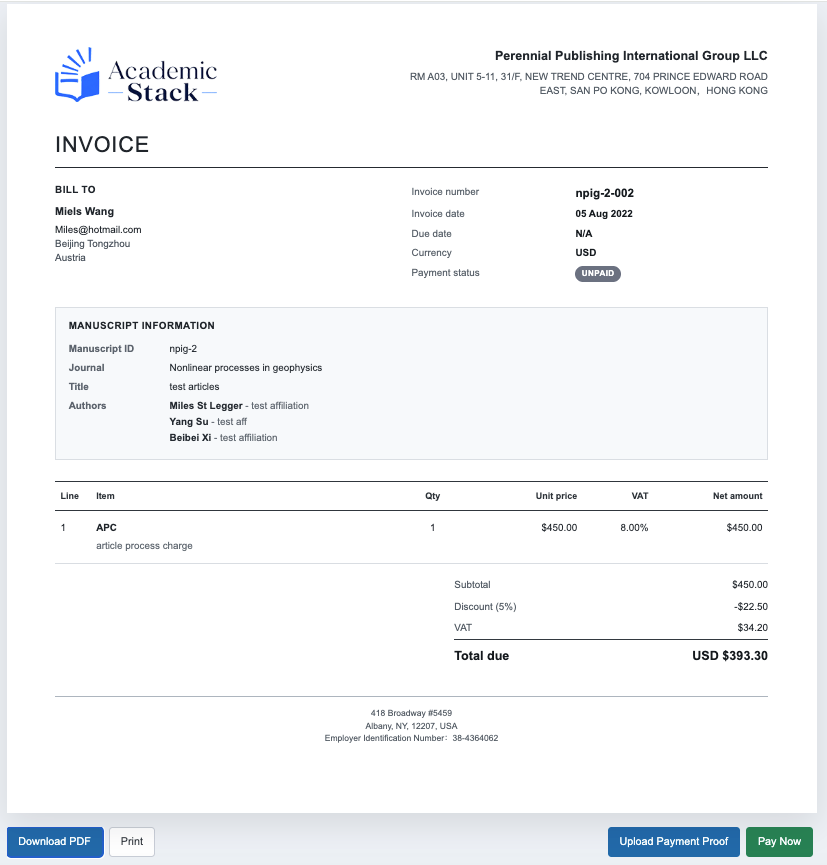
The shared invoice page used for Billing review and author payment. Authors can download or print the invoice, upload payment proof, or pay online.
Academic Stack supports two primary payment methods:
- Online Payment (Automated): Integrates with services like Antom and SocoPay. Once payment succeeds, the gateway automatically updates the invoice status to Paid.
- Offline Wire Transfer (Manual): Payment details are printed on the invoice. The author uploads payment proof, and billing staff verify it and select Mark as Paid.
After payment is confirmed through either method, the Billing Manager sends the receipt to complete the workflow.