Search Box
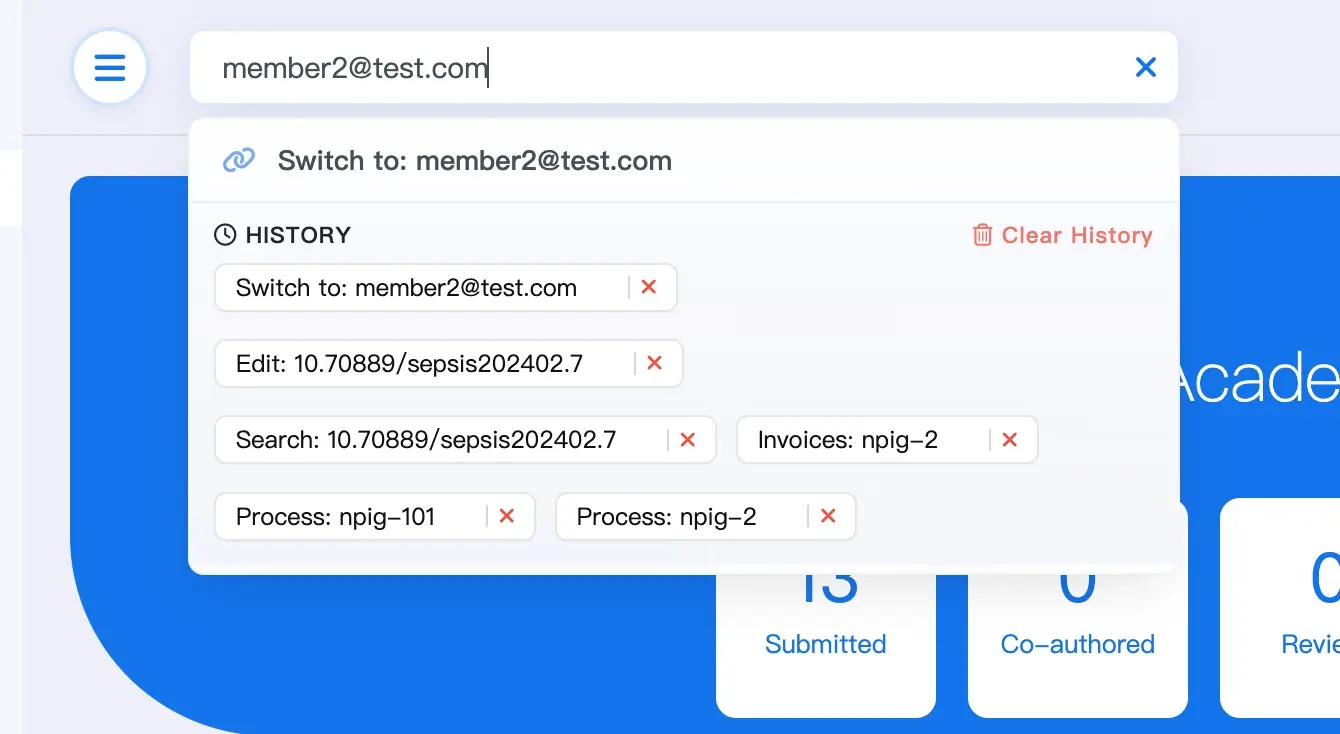
Use the top search box to jump directly to a manuscript, article, or workflow page without browsing through menus. Internal users can search manuscripts and articles, while Super Users can also search for users by email.
What is an internal user?
This feature is reserved for staff members (Editorial Office, Publisher, etc.) to jump directly to target pages.
How It Works
- Enter a supported identifier in the top search box.
- Press
Enteror click Search. - Select a result to open the related page or action.
What You Can Search
The search box supports the following input types:
- Manuscript ID (e.g.,
npig-109) - Manuscript Number (e.g.,
123) - DOI (e.g.,
10.1000/xyz123ordoi:10.1000/xyz123) - User Email (e.g.,
[email protected], Super User only)
Available Results
Different input types return different actions:
| Search Input | Who Can Use It | Available Results |
|---|---|---|
| Manuscript ID / Number | Internal users | View, Process, and Invoices (if billing permissions are enabled) |
| DOI | Users with the Publisher role | Search and Edit for the matching article |
| User Email | Super Users only | Switch to for user impersonation |
Permissions & Visibility
Results are filtered by your current role and permissions:
Invoicesis only visible to users with billing or financial permissions.- DOI-based article actions are primarily available to the
Publisherrole. - User search results are only available to Super Users.
Switch tois restricted to Super Users.
Advanced Features
Search History
The platform stores your recent searches so you can return to frequently used records more quickly.
- History is displayed when the search input is focused.
- You can click any history item to jump back instantly.
- This is particularly useful when handling multiple manuscripts in sequence.
Switch to User (User Impersonation)
Super Users can search for a registered user's email and select Switch to to instantly access their account. This feature is primarily a troubleshooting tool, allowing staff to see the dashboard exactly as a specific author or reviewer does to identify and resolve issues that may be unique to a user's perspective or manuscript state.
For security and privacy, this feature uses secure internal authorization and does not require or store user passwords. Academic Stack does not store plain-text passwords, ensuring user credentials remain private even during administrative access.
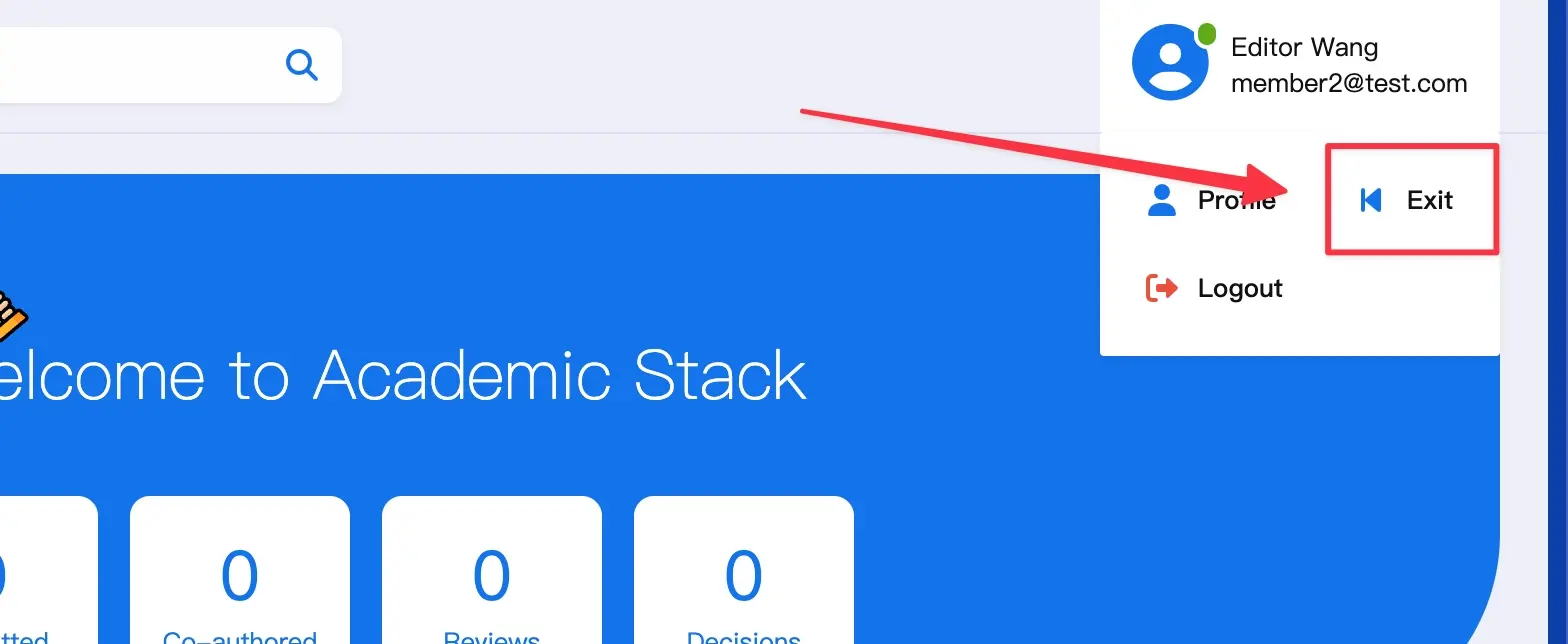
After completing your tasks, click the Exit option in the header to return to your original administrator account. For security purposes, all impersonation actions are recorded in the system's audit logs.
Notes
The search box is the fastest way for internal staff to open specific records and workflows directly from the Editorial Office dashboard.